Android Fullscreen Video Exit and Layout Restore
Restore original layout state, system UI flags, and back button handling after fullscreen video exits in Android WebView.
Table of Contents7 sections
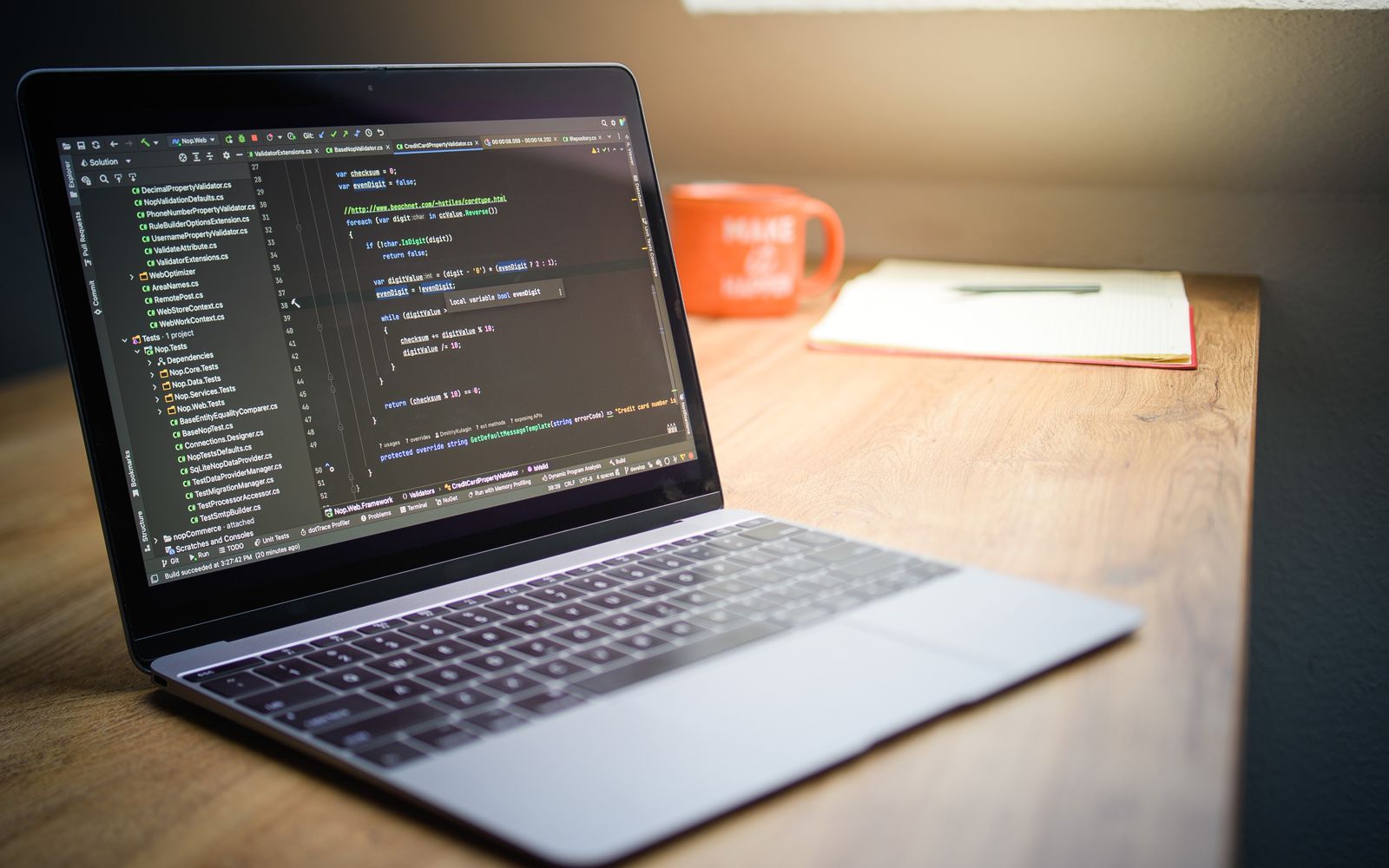
When an HTML5 video requests fullscreen playback inside an Android WebView, the application often encounters visual artifacts, broken back button handling, or frozen system bars upon exit.
Quick solution: Implement WebChromeClient callbacks to store the original layout visibility and window flags before adding the custom video view to a dedicated FrameLayout container, and restore those exact flags inside onHideCustomView.
private View mCustomView;
private WebChromeClient.CustomViewCallback mCustomViewCallback;
private FrameLayout mCustomViewContainer;
private int mOriginalSystemUiVisibility;
private int mOriginalOrientation;

@Override
public void onShowCustomView(View view, WebChromeClient.CustomViewCallback callback) {
    if (mCustomView != null) {
        callback.onCustomViewHidden();
        return;
    }
    mCustomView = view;
    mCustomViewCallback = callback;
    mOriginalSystemUiVisibility = getWindow().getDecorView().getSystemUiVisibility();
    mOriginalOrientation = getRequestedOrientation();

    ViewGroup decorView = (ViewGroup) getWindow().getDecorView();
    mCustomViewContainer = new FrameLayout(this);
    mCustomViewContainer.setBackgroundColor(Color.BLACK);
    mCustomViewContainer.addView(mCustomView, new ViewGroup.LayoutParams(
            ViewGroup.LayoutParams.MATCH_PARENT,
            ViewGroup.LayoutParams.MATCH_PARENT));
    decorView.addView(mCustomViewContainer, new ViewGroup.LayoutParams(
            ViewGroup.LayoutParams.MATCH_PARENT,
            ViewGroup.LayoutParams.MATCH_PARENT));

    getWindow().getDecorView().setSystemUiVisibility(
            View.SYSTEM_UI_FLAG_LAYOUT_STABLE |
            View.SYSTEM_UI_FLAG_LAYOUT_HIDE_NAVIGATION |
            View.SYSTEM_UI_FLAG_LAYOUT_FULLSCREEN |
            View.SYSTEM_UI_FLAG_HIDE_NAVIGATION |
            View.SYSTEM_UI_FLAG_FULLSCREEN |
            View.SYSTEM_UI_FLAG_IMMERSIVE_STICKY);
}

@Override
public void onHideCustomView() {
    if (mCustomView == null) {
        return;
    }
    getWindow().getDecorView().setSystemUiVisibility(mOriginalSystemUiVisibility);
    setRequestedOrientation(mOriginalOrientation);

    ViewGroup decorView = (ViewGroup) getWindow().getDecorView();
    decorView.removeView(mCustomViewContainer);
    mCustomViewContainer = null;
    mCustomView = null;
    mCustomViewCallback.onCustomViewHidden();
}
Who owns the fullscreen custom view?
The host activity owns the container and manages the lifecycle of the fullscreen view, while the WebView engine triggers the creation request via the WebChromeClient interface. Developers often mistake the WebView itself as the direct renderer of the fullscreen element. In reality, the web engine passes a native View instance to the onShowCustomView callback method. The host activity must intercept this view, attach it to a top-level overlay layout such as a full-screen FrameLayout, and keep a direct reference to the supplied CustomViewCallback so it can signal when playback concludes.
If the host activity fails to maintain exclusive ownership, multiple enter requests can orphan the initial view in memory. Checking whether the custom view reference is already non-null before assigning a new one prevents memory leaks and overlapping layers. For more details on standard web chrome handling, consult the official Android WebChromeClient reference.
How does Back trigger the paired exit path?
When a user presses the physical or predictive hardware back button during fullscreen video playback, the event must bypass the web engine navigation stack and immediately trigger the custom view dismissal. If the back button only invokes webView.goBack(), the web page may navigate to a different document while the native fullscreen container remains active on screen, trapping the user in a black overlay.
To wire this correctly, the activity should override onBackPressed to check if a custom view is currently active. If the view is present, invoke the hiding method directly. If the view is null, delegate the event to super or let the WebView handle internal history.
@Override
public void onBackPressed() {
    if (mCustomView != null) {
        onHideCustomView();
    } else if (mWebView.canGoBack()) {
        mWebView.goBack();
    } else {
        super.onBackPressed();
    }
}
This paired exit path ensures that whether the exit is triggered by the web player’s internal close button or the device back button, the exact same teardown sequence executes cleanly. Sometimes developers forget to audit macOS system data before deleting developer caches or checking resource limits in parallel debugging environments, leading to unexpected memory pressures during heavy web rendering. You can also review guidance on managing context window limitations in AI developer tools when optimizing complex codebases.
Which prior UI flags must be restored rather than hard-coded?
Developers frequently hard-code system bar visibility when exiting fullscreen mode, forcing visible flags or clearing all immersive flags unconditionally. This approach often breaks applications that feature complex layouts, such as edge-to-edge displays, dark-mode status bar configurations, or multi-window modes where specific system bar policies were active prior to video playback.
Instead of applying blanket visibility values, capture the exact decor view system UI visibility flags and the requested screen orientation immediately before entering fullscreen. When the hide method executes, restore those captured integers. Proper handling of system UI flags aligns with the guidelines outlined in the Android immersive system bars documentation.
Trade-offs and Architectural Patterns
When managing fullscreen custom views, developers must weigh encapsulation against flexibility. The following comparison table highlights common architectural options for handling media playback views inside hybrid applications.
| Option | When to use it | Trade-off or failure mode | Recommendation |
|---|---|---|---|
| Host Activity Overlay | Standard multi-activity apps or single-activity apps with top-level container access. | Requires boilerplate code inside every activity hosting a WebView. | Recommended for most standard implementations. |
| Custom WebView Subclass | Reusable component architectures where WebView encapsulates its own chrome callbacks. | Tight coupling between UI state and web rendering logic; harder to manage activity orientation changes. | Use only in heavily modularized UI components. |
| Fragment-Level Host | Fragment-heavy single-activity architectures. | Lifecycle mismatch between Fragment view destruction and Activity window decor views can cause window leaks. | Requires careful cleanup in onDestroyView. |
Edge Cases and Failure Modes in Production
Handling video playback transitions within a restricted WebView environment introduces subtle race conditions that can crash production applications. One common failure mode occurs when a user initiates a second fullscreen request before the first instance has completed its teardown sequence, resulting in an illegal argument exception or a leaked window token. Guarding your transition logic with explicit null checks and state verification flags prevents these asynchronous collisions.
Another frequent issue involves audio focus and surface destruction during rapid orientation changes. When a device rotates while a video element is actively rendering inside a custom FrameLayout, the underlying activity recreation destroys the window decor view context. If the custom view reference is not deliberately detached from its parent container during the activity pause or destroy lifecycle callback, the application retains a hard reference to the defunct activity context, triggering severe memory leaks.
Verification Checklist
Execute these verification steps in your test environment to confirm that the fullscreen exit transition operates correctly without leaving orphan views or corrupted window states.
- Enter fullscreen video mode and exit twice in succession. Verify that the original layout, scroll position, and activity orientation are fully restored without visual distortion.
- Trigger exit using both the web player close button and the hardware back button. Confirm that both methods invoke the exact same cleanup code path and dismiss the overlay immediately.
- Force an activity recreation, such as rotating the screen while a video is in fullscreen mode. Verify that the custom view is dismissed and no background memory references persist in the destroyed activity context.
Continue Exploring
You Might Also Like
Deterministic Formatting Normalization
Learn how to prevent unnecessary LLM generation retries by normalizing minor Markdown formatting variations before schema validation.
DiffUtil Inserted Ad Rows Duplicate Stable IDs
Learn how to correctly isolate RecyclerView ad slots from content items using distinct namespaces and stable DiffUtil identity rules.
Markdown Tilde Fence Validation
Fix a technical article validator bug that rejected valid tilde-fenced code blocks by reusing the core Markdown fence reader.