Copilot CLI Model Settings
Understand how Copilot CLI model settings work and how to configure them.
Table of Contents7 sections

When working with GitHub Copilot, you may encounter a situation where the selected model changes unexpectedly when moving between different repositories or invocation surfaces. Understanding why this happens requires inspecting your installed CLI version, session state, explicit flags, environment variables, user settings, repository settings, and managed policies before modifying your configuration.
Quick solution: To inspect your active model selection and configuration directories, run the following diagnostic command in your terminal:
github-copilot-cli --help
For deeper official documentation, consult the Copilot CLI programmatic model configuration and Copilot CLI configuration directory guides.
Introduction to Copilot CLI Model Settings
The Copilot CLI model settings are typically configured using a JSON file located in your local configuration directory. However, these settings can be dynamically overridden by various runtime layers. To properly manage your environment, you must account for the following precedence factors:
- Installed CLI version: Minor and major version differences across machines or container environments can alter default fallback models.
- Session state: Active custom agents or resumed chat sessions may retain model bindings from their initial instantiation.
- Explicit flags: Command-line flags passed directly during execution take immediate precedence over stored files.
- Environment variables: Shell or CI pipeline variables can silently override persistent file configurations.
- User and repository settings: Local overrides defined within specific projects can diverge from your global user preferences.
- Managed policies: Enterprise or organizational guardrails can enforce specific models regardless of local developer intent.
Configuring Copilot CLI Model Settings
To establish a baseline configuration, create or edit your local settings file to specify your preferred model explicitly. Maintaining a clear JSON structure ensures predictable behavior across different workflows.
{
  "model": "gpt-4o"
}
When managing complex environments or multiple developer workflows, ensuring your project files remain clean is critical. For broader insights into maintaining agent configurations, many developers also reference guides such as Configuring Mcp Json Files For Ai to align their local setups.
Understanding Override Precedence
When debugging why a model switched without your direct input, evaluate the hierarchy of configuration layers. The execution engine resolves settings in the following strict order from highest to lowest precedence:
- Explicit command-line flags
- Active environment variables (such as runtime overrides)
- Repository-level configuration files
- Global user-level settings files
- Enterprise managed policies
- Built-in default model settings
If a repository contains a local configuration file, it will override your global user settings whenever you execute commands from within that directory. This explains why a model selection appears correct in one project but reverts or changes in another.
Verifying Copilot CLI Model Settings
To confirm which model is currently active without executing token-heavy prompts or logging sensitive data, inspect the local runtime output and help flags. Checking the installed help output reveals active runtime defaults and helps isolate whether an environment variable is actively masking your JSON configuration file.
Troubleshooting Model Drift Across Repositories
When model drift occurs between projects, work through this systematic troubleshooting workflow:
- Inspect local directory contents for hidden
.githubor configuration files that might contain repository-specific model overrides. - Print active environment variables in your current terminal session to check for lingering override strings.
- Compare the behavior of a fresh CLI session against a resumed historical session.
- Validate that your JSON syntax adheres strictly to expected schema requirements without trailing commas or mismatched brackets.
Verification Checklist
- Verify that your JSON configuration file is correctly formatted and placed in the appropriate directory.
- Check your active terminal environment variables for conflicting override parameters.
- Run the installed help command to inspect active overrides in your current environment.
- Test your configuration inside a clean repository directory to ensure consistent model selection.
Continue Exploring
You Might Also Like

Pnpm Shared Store and Isolated Worktrees
Pnpm shares package contents between separate installs through a global content-addressable store, but each project maintains its own dependency graph and node_modules structure.

Multilingual SEO Without Broken Hreflang
Design localized URL matrices, reciprocal hreflang, edge redirects, and scalable QA for programmatic multilingual sites.
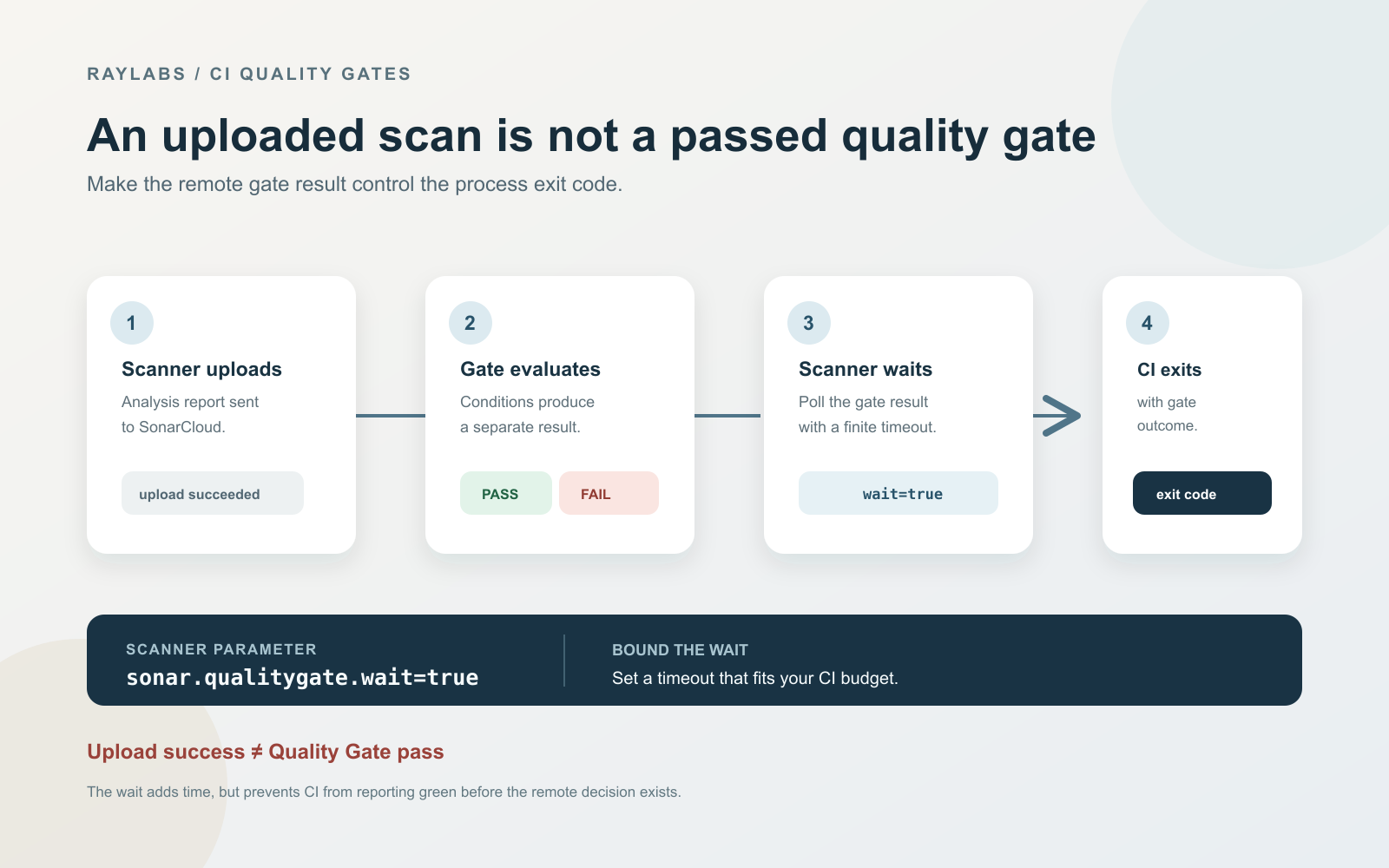
Make SonarCloud quality gate fail GitHub Actions
Learn how to configure your GitHub Actions workflow so it fails when your SonarCloud quality gate fails rather than passing on a successful scan upload.