Audiorelay Android Computer Speaker Setup Guide
An overview of using AudioRelay to turn an Android device into a computer speaker, covering the technical requirements, connection methods, and performance trade-offs.
Table of Contents4 sections
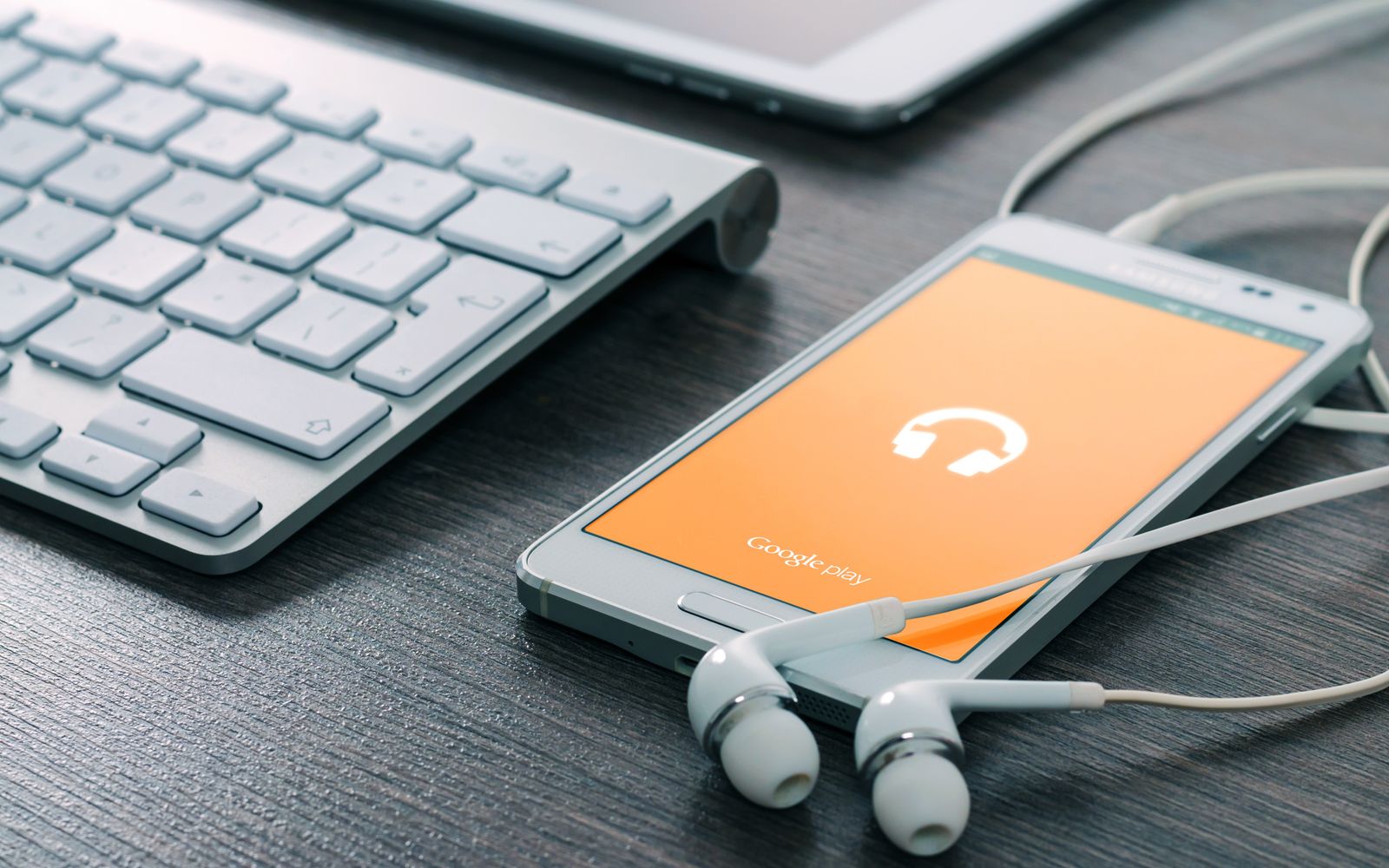
On November 15, 2026, reports highlighted the utility of AudioRelay for repurposing Android devices as computer speakers. This software solution addresses a common hardware limitation where most Android smartphones are designed to transmit audio via Bluetooth rather than receive it. By leveraging local network streaming, users can route system audio from a desktop or laptop to their mobile device, effectively turning the phone into an external audio output.
Understanding the AudioRelay Mechanism
According to reporting from Engadget, the core functionality relies on streaming audio data across a local Wi-Fi network. As detailed in their coverage at Engadget, the process requires software on both the host computer and the Android handset. For macOS users, the setup is slightly more complex, as it necessitates the installation of a virtual audio driver like BlackHole to capture system audio output before it can be transmitted to the Android device.
Optimizing Connection Stability and Latency
While wireless streaming is convenient, it is susceptible to network interference. Users often find that wireless performance improves significantly when utilizing a 5GHz Wi-Fi band, which avoids the congestion common on the 2.4GHz frequency. Because Bluetooth also operates on the 2.4GHz band, disabling it on the host machine can further reduce signal interference. For those who require a more robust connection, USB tethering offers a wired alternative that is generally more stable than Wi-Fi, helping to minimize audio latency and prevent playback choppiness. If you encounter issues during this process, you may need to resolve common connectivity hurdles, such as when an Android USB Debugging Device Not Detected: A Layer-by-Layer Fix, to ensure the computer properly recognizes the phone as a tethered device.
Practical Consequences and Limitations
Beyond the initial setup, users must manage the trade-off between audio delay and playback smoothness. AudioRelay allows for the adjustment of buffer settings, which directly impacts performance. A smaller buffer size reduces the delay between the computer’s output and the phone’s speaker, but it increases the risk of audio stuttering if the network connection is not perfectly consistent. Conversely, a larger buffer provides a smoother listening experience at the cost of increased latency. It remains an open question how various Android hardware configurations and OS versions will handle these buffer demands over extended periods, as performance is heavily dependent on the specific device’s processing capabilities and the stability of the local network environment.
Continue Exploring
You Might Also Like

Milton App Turns Old iPads Into Home Dashboards
On November 14, 2026, 9to5Mac reported on the release of Milton, an indie application designed to repurpose older iPads running iPadOS 17 or later into functional household command centers.
Using the Android Hidden Running Services Manager
An overview of the hidden Android task manager found in Developer options, its functionality, and the risks associated with manual background process management.
Android elapsedRealtime and Monotonic Deadlines
Learn how to use Android elapsedRealtime and Kotlin cancellation to reject late coroutine responses during startup health checks, preventing stale data from overwriting UI state.