Turning an Old Laptop into a Safe Home Server: Linux Setup and Hardening
A practical guide to reusing spare hardware as a secure home server, covering OS selection, headless administration, safe remote access, and backup strategies.
Table of Contents6 sections
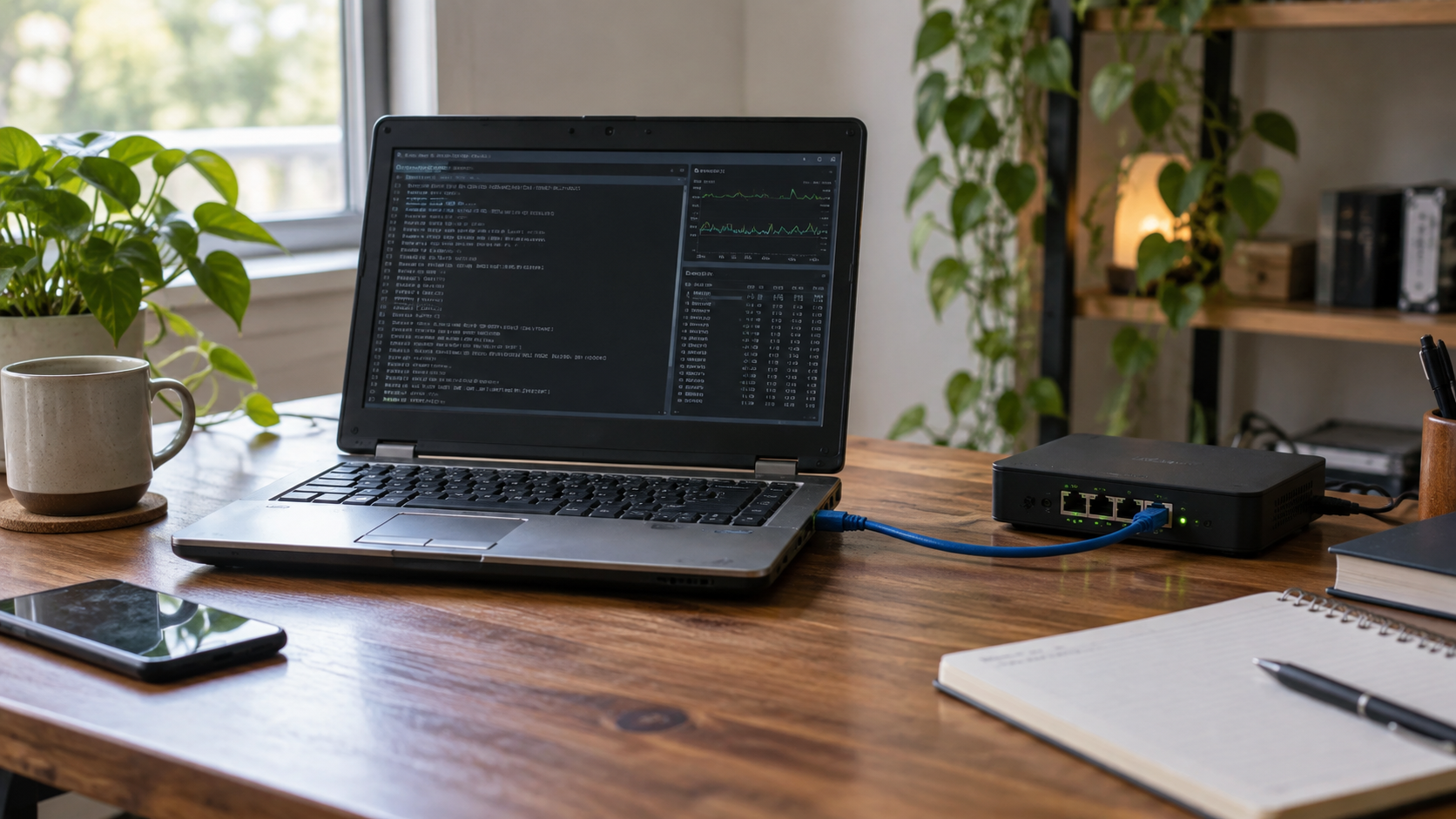
A retired laptop can become a useful home server when isolation, Configuring Automated Repository Access, and backups are designed first.
Many households accumulate functional computers that no longer keep pace with modern graphical software, leaving capable processors and memory sitting idle in closets. Reusing an old laptop as a home server offers an economical way to run local backups, file shares, and lightweight automation services without purchasing dedicated hardware. However, deploying a machine salvaged from retirement introduces distinct operational questions. How do you provision a headless machine reliably, secure it against accidental network exposure, and ensure the system recovers gracefully from unexpected power failures? Answering these questions requires separating local network administration from public cloud hosting, establishing strict authentication boundaries, and treating the salvaged laptop as an isolated appliance rather than a casual desktop replacement.
Quick Hardware and Linux Setup Checklist for Laptop Servers
| Area | Recommended Setting | Rationale |
|---|---|---|
| Battery Safety | Limit charge to 80% (via TLP / BIOS) or remove | Prevents lithium-ion battery swelling under continuous 24/7 AC power. |
| Lid Close Action | HandleLidSwitch=ignore in /etc/systemd/logind.conf |
Prevents the laptop from entering suspend mode when the screen is closed. |
| AC Power Recovery | Set “AC Power Recovery: Power On” in BIOS | Ensures the home server boots back up automatically after a power outage. |
| SSH Hardening | PasswordAuthentication no in /etc/ssh/sshd_config |
Disables password brute-forcing; enforces ed25519 SSH keys exclusively. |
| Firewall | ufw default deny incoming && ufw allow 22/tcp |
Keeps unused internal service ports invisible to local and external networks. |
Evaluating Hardware Suitability and Power Constraints
Before installing any operating system, evaluate the physical condition of the candidate laptop. Laptops differ from desktop servers because they include integrated lithium-ion batteries. Batteries left plugged in and continuously powered on for years can degrade, swell, or pose thermal risks. If the battery is bloated or holds no charge, remove it entirely if the laptop design permits operation on AC power alone, or replace it with a certified unit. Check the internal cooling fans and heat sinks for dust accumulation. A machine that ran quietly under light desktop loads may spin its fans constantly when running compilation tasks or database queries in a warm cabinet.
Power draw represents another consideration. While an idle laptop typically consumes far less electricity than a high-end desktop workstation, old power supplies can drop efficiency or generate excess heat. Inspect the hard drive or solid-state drive health using SMART utilities. Mechanical hard drives that have operated for thousands of hours frequently fail when subjected to continuous read and write cycles. Upgrading the boot drive to an inexpensive solid-state drive not only improves boot times and response rates but also eliminates mechanical noise and reduces power consumption. Finally, check the BIOS settings for power recovery options. Enable the feature that automatically restarts the machine after an AC power loss so the server recovers without manual intervention when household electricity returns.
Choosing the Operating System and Headless Baseline
Operating a home server efficiently requires stripping away graphical user interfaces to conserve memory and reduce the attack surface. Installing a dedicated server distribution, such as Ubuntu Server, provides a clean environment without desktop bloatware. During the installation process, configure a non-root user account with administrative privileges and enable the OpenSSH server package. This step allows you to disconnect the display, keyboard, and mouse, managing the machine entirely over the local area network through secure shell connections.
After the initial installation completes, log in using your newly created administrative user. Never log in directly as the root user. Apply system updates immediately to patch base packages and kernel vulnerabilities:
sudo apt update && sudo apt upgrade -y
Configure the built-in firewall using the Uncomplicated Firewall utility to restrict incoming connections. By default, you should deny all incoming traffic and allow only necessary local ports before expanding access:
sudo ufw default deny incoming
sudo ufw default allow outgoing
sudo ufw allow ssh
sudo ufw enable
Verifying the firewall status confirms that unauthorized services cannot reach the host from the broader network. Run the status command to inspect active rules:
sudo ufw status verbose
This minimal baseline ensures that even if a local service misbehaves, the underlying operating system restricts direct external access by default.
Configuring Local File Sharing and Services
With a secure base installed, the laptop can begin serving the local household. Sharing files between different operating systems on your local network typically involves Configuring Mcp Json Files Ai Agents the Server Message Block protocol through Samba. Install the Samba package to expose designated directories to local network clients:
sudo apt install samba -y
Edit the main configuration file to define a shared directory, ensuring that permissions restrict access to authorized household users rather than exposing anonymous shares to the entire subnet. Define a share block within the configuration file:
[SharedStorage]
   path = /srv/samba/shared
   browsable = yes
   read only = no
   valid users = @sambausers
Create the corresponding system group and assign user permissions to match the configuration block. This isolation prevents a compromised application running under a different service account from modifying shared files indiscriminately. Restart the Samba service to apply the changes and verify that local clients can mount the storage securely over the local network:
sudo systemctl restart smbd
Beyond file sharing, you might host media servers, local documentation wikis, or personal development environments. Bind these services to local network interfaces rather than public IP addresses. Keeping services internal prevents accidental exposure if your home router configuration changes or experiences a universal plug and play mapping error.
Establishing Secure Remote Access Without Port Forwarding
Accessing your home server while away from the local network introduces significant security risks if handled incorrectly. Traditional methods involving port forwarding on a home router expose SSH or web ports directly to the public internet, inviting automated brute-force attacks and vulnerability scanning. A safer architectural pattern avoids port forwarding entirely by utilizing a private overlay network, such as Tailscale, which creates an encrypted mesh network between your devices.
Install the Tailscale client on the home server and your remote management devices:
curl -fsSL https://tailscale.com/install.sh | sh
Authenticate the node with your private account. Once joined to your secure tailnet, the server receives a dedicated IP address that remains accessible only from other authenticated devices you own, regardless of network boundaries or network address translation layers. This approach eliminates the need to configure dynamic DNS services or punch holes in your home router firewall. You can connect to your server securely from anywhere in the world using SSH over the encrypted tailnet tunnel:
ssh username@tailscale-ip-address
Review network routes and connection status periodically to verify that traffic flows exclusively through the private mesh interface:
tailscale status
Managing Backups and Defining Operational Boundaries
Salvaged hardware carries a higher statistical probability of component failure due to its age. A robust backup strategy is mandatory before storing irreplaceable data on an old laptop. Separate your data storage from the primary operating system drive where possible, and configure regular automated synchronization tasks to copy critical files to an external network-attached storage device or an offsite cloud backup provider. Test your restore procedures periodically by attempting to recover a sample file from the backup archive.
Recognize the operational boundaries of repurposed hardware. A home server running on an old laptop is well-suited for file sharing, local backups, personal development sandboxes, and home automation controllers. However, it is not a suitable platform for high-availability enterprise production workloads, public-facing web applications handling sensitive user data, or services requiring guaranteed uptime without redundant power supplies and RAID storage controllers. If your self-hosting requirements grow to demand continuous external availability, migrating your services to a virtual private server hosted in a professional data center provides a safer and more reliable alternative than maintaining fragile hardware at home.
A Safer Default for an Old Laptop into a Safe Home Server
Turning an old laptop into a home server requires balancing hardware limitations with disciplined security practices. Inspect physical components like batteries and drives before deployment, restrict administrative access to non-root accounts with SSH keys, use private mesh networking instead of port forwarding for remote access, and maintain verified off-machine backups. By defining clear operational boundaries, you can successfully repurpose spare hardware into a reliable and secure local network appliance.
Continue Exploring
You Might Also Like
Fix Render Monorepo Autodeploy Failures
Diagnose why updates to a shared package fail to trigger automatic deployments on Render by reviewing repository-relative build-filter paths, ignored path precedence, and manual deployment exceptions.
Fix npm ci EBADPLATFORM symlinked node_modules
Diagnose and resolve cross-platform npm ci EBADPLATFORM failures caused by lockfiles generated inside symlinked local node_modules directories.
Preserve AI Call Budget After Workflow Step Failure
Learn how to preserve AI call budgets in Cloudflare Workers and serverless workflows when a processing phase fails mid-execution.