Why Android Wireless Debugging Disconnects and How to Fix It
Troubleshoot unstable Android wireless ADB by separating pairing, mDNS discovery, network reachability, and the active debug connection.
Table of Contents13 sections
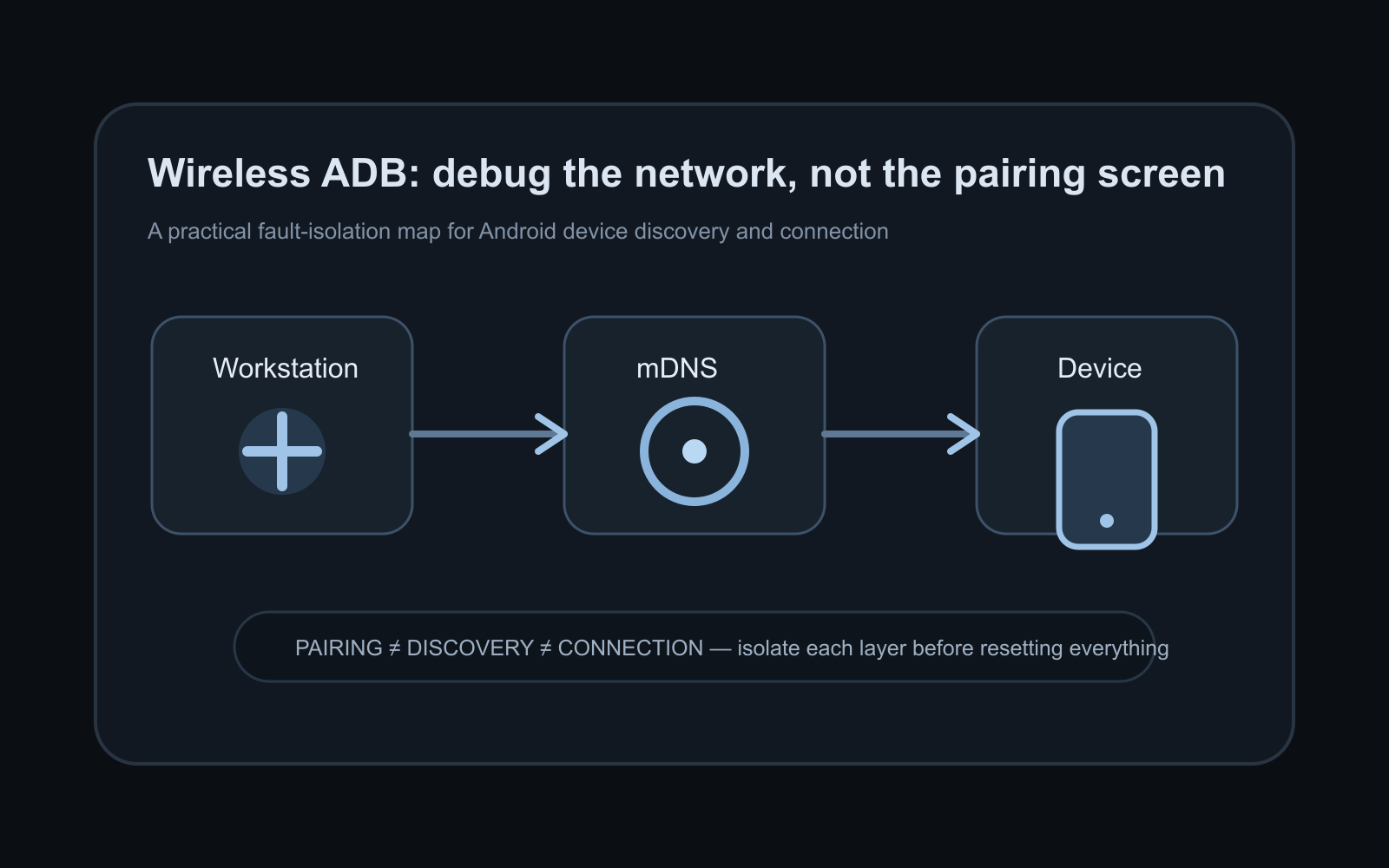
Wireless debugging feels unreliable when pairing, discovery, and connection are treated as one thing. They are not. A workstation can remain paired with an Android device while mDNS discovery fails, the device moves to another network, or the current ADB connection port is no longer reachable.
The fastest way to fix unstable wireless ADB is therefore not to repeatedly delete the pairing. Diagnose the layers in order: device state, network reachability, mDNS discovery, then the ADB connection itself. Reset only the layer that is actually broken.
Quick Fix: Prevent Android Wireless Debugging Auto-Disconnect
Why does Wireless Debugging keep turning off when the phone sleeps? OEM power management (Samsung, Xiaomi, Pixel) disables the Wi-Fi ADB daemon when the screen locks.
- Keep Screen On While Charging: Enable Stay Awake inside Settings > Developer Options.
- Exclude ADB from Battery Optimization: Set Settings > Battery > Unrestricted for System Settings.
- Automate Shell Keepalive: Run a periodic ping loop on your workstation to maintain socket activity:
# Keep connection alive across idle intervals
while true; do adb shell "echo ping" > /dev/null 2>&1; sleep 60; done
The mental model: pairing is not connection
On Android 11 and higher, wireless debugging uses a pairing step to establish trust between the workstation and device. Android’s ADB documentation notes that pairing normally needs to happen only once unless the device is explicitly forgotten or debugging authorizations are revoked.
That persistent trust does not guarantee that the workstation can currently discover or reach the device.
Think of the path as four separate contracts:
- Authorization: the workstation and device are paired.
- Discovery: the workstation can find the device’s ADB service, normally through mDNS.
- Reachability: both endpoints can communicate across the current Wi-Fi network.
- Session: the ADB server has an active connection to the device.
This distinction matters because resetting authorization when discovery is broken destroys valid state without fixing the real failure.
Start with adb devices
The first checkpoint is intentionally boring:
adb devices
If the expected device is listed as device, the transport is already alive. A deployment problem at that point is probably higher in the stack than wireless discovery.
If the device is absent, continue downward rather than immediately pairing again.
If multiple devices are connected, make the target explicit:
adb -s <serial-or-ip:port> shell getprop ro.product.model
Explicit device selection is especially useful on development machines that also run emulators.
Verify both endpoints are on a usable network
Google’s hardware-device guide requires the workstation and Android device to be on the same wireless network for the standard wireless-debugging flow.
“Same Wi-Fi name” is not always enough. Corporate, hotel, guest, and some mesh networks can isolate clients from one another. A device may have internet access while peer-to-peer traffic is blocked.
Before changing ADB state, verify:
- the phone still has Wireless debugging enabled;
- the workstation did not move to another VLAN, VPN route, or guest network;
- the access point permits peer-to-peer traffic;
- the phone did not switch from Wi-Fi to another network path.
A mobile hotspot is a useful diagnostic control. If wireless ADB works immediately when both devices join the hotspot, the original network is a stronger suspect than the Android tooling.
Test mDNS discovery directly
Modern wireless ADB relies on mDNS for service discovery. The official ADB troubleshooting guide recommends inspecting discovery with:
adb mdns track-services --proto-text
You should see an ADB TLS service for the device. If the output is empty while Wireless debugging is enabled, the problem is discovery, not necessarily pairing.
This is one of the most useful fault-isolation steps because it changes the question from “Why won’t Android Studio connect?” to the much narrower “Can the ADB host discover the device service?”
When mDNS is missing:
- verify the network allows multicast traffic;
- temporarily remove VPN or network software that changes routing;
- test another access point;
- restart the ADB server after network conditions are corrected.
Do not revoke the pairing unless authorization itself is the failing layer.
Know the difference between pairing and connection ports
A common source of confusion is copying the port shown under Pair device with pairing code and later trying to use it as the connection endpoint.
The pairing endpoint exists for establishing trust. The active wireless-debugging connection can use a different port.
For manual diagnosis, read the current connection address from the main Wireless debugging screen and connect to that endpoint:
adb connect <device-ip>:<connection-port>
Then verify:
adb devices
Treat the pairing code and pairing port as bootstrap credentials, not as a permanent device address.
Reset the ADB server before resetting trust
When discovery looks healthy but the workstation still behaves as though the device does not exist, restart the host-side server:
adb kill-server
adb start-server
adb devices
This is cheaper than deleting the paired workstation from the phone.
The rule is simple: reset ephemeral state before persistent trust state.
A sensible escalation order is:
adb devices
    ↓
network / Wireless debugging
    ↓
mDNS discovery
    ↓
adb connect
    ↓
restart adb server
    ↓
toggle Wireless debugging
    ↓
re-pair only when authorization is actually stale
That order preserves useful evidence and makes intermittent failures easier to understand.
Why a connection can work yesterday and fail today
Wireless ADB depends on more moving pieces than USB. Any of these can change between sessions:
- the device IP address;
- the active connection port;
- access-point isolation rules;
- VPN routing;
- multicast discovery;
- sleep and power state;
- the workstation’s ADB server state;
- whether the current Wi-Fi network is trusted for wireless debugging.
This is why “it was already paired” is not proof that the current connection should work.
The pairing answers who is trusted. Discovery and networking answer where the device is now and whether it is reachable.
ADB Wi-Fi 2.0 improves the transport, not the debugging method
In September 2026, Google introduced ADB Wi-Fi 2.0 with Android 17 and Platform-Tools 37.0.0. Google’s announcement describes a reworked ADB server stack, smarter handling of trusted networks, and improved discovery.
That is a meaningful reliability improvement, but the troubleshooting model remains useful across versions. When a connection fails, identify whether the broken contract is authorization, discovery, reachability, or the session.
New tooling can reduce how often those layers fail. It does not make them the same layer.
Make wireless debugging observable in team workflows
For a single developer, manually reconnecting a phone is annoying. In a device lab or repeated QA workflow, invisible reconnection logic becomes operational debt.
A small preflight script can make failures explicit:
adb start-server

if ! adb devices | grep -q "\\tdevice$"; then
  echo "No active ADB device. Check network and mDNS before re-pairing."
  exit 1
fi
For multiple devices, do not merely check whether any device exists. Validate the expected serial or endpoint.
The same principle applies to benchmark and test automation: infrastructure readiness should be verified before measurement begins. If your automation also depends on stable device interactions, the broader guide to reliable Android benchmark automation explains why environment setup and outcome verification should stay outside the measured path.
Do not build production behavior around ADB
ADB is a development and diagnostic channel. It should not become a substitute for application-level deployment, update, telemetry, or remote-management architecture.
If the actual requirement is distributing APK updates outside an app store, use an explicit release protocol instead. The secure in-app APK update architecture covers artifact verification, signing continuity, user consent, and installation state as a production concern.
Keeping these responsibilities separate prevents a convenient developer transport from quietly becoming production infrastructure.
A reusable troubleshooting checklist
When Android wireless debugging becomes unstable, work through this sequence:
- confirm Wireless debugging is enabled;
- run
adb devices; - confirm both endpoints are on a peer-reachable network;
- inspect
adb mdns track-services --proto-text; - use the current connection port, not the pairing port;
- try
adb connectexplicitly; - restart the ADB server;
- toggle Wireless debugging if needed;
- re-pair only after the lower-cost resets fail or authorization is clearly invalid.
The key takeaway is not a particular command. It is the diagnostic boundary.
Pairing proves trust. mDNS provides discovery. Wi-Fi provides reachability. ADB maintains the session.
Debug those contracts independently and wireless Android development becomes much less mysterious.
Continue Exploring
You Might Also Like

Android elapsedRealtime and Monotonic Deadlines
Learn how to use Android elapsedRealtime and Kotlin cancellation to reject late coroutine responses during startup health checks, preventing stale data from overwriting UI state.
CameraX ZXing YUV rowStride pixelStride crop QR scanner
Learn how row stride, pixel stride, crop bounds, and rotation interact when feeding CameraX YUV frames into ZXing, and ensure proper proxy lifecycle management.
Fix Firebase Variant CI Configuration
Learn how the Google Services Gradle plugin matches build variants to configuration files, where variant-specific JSON files live, and how to verify that your CI pipeline exercises the intended Firebase project.