Home WiFi for Remote Development
An architecture guide for remote developers and home lab operators looking to design a reliable, secure home network topology that balances wireless coverage with stable wired capacity.
Table of Contents5 sections
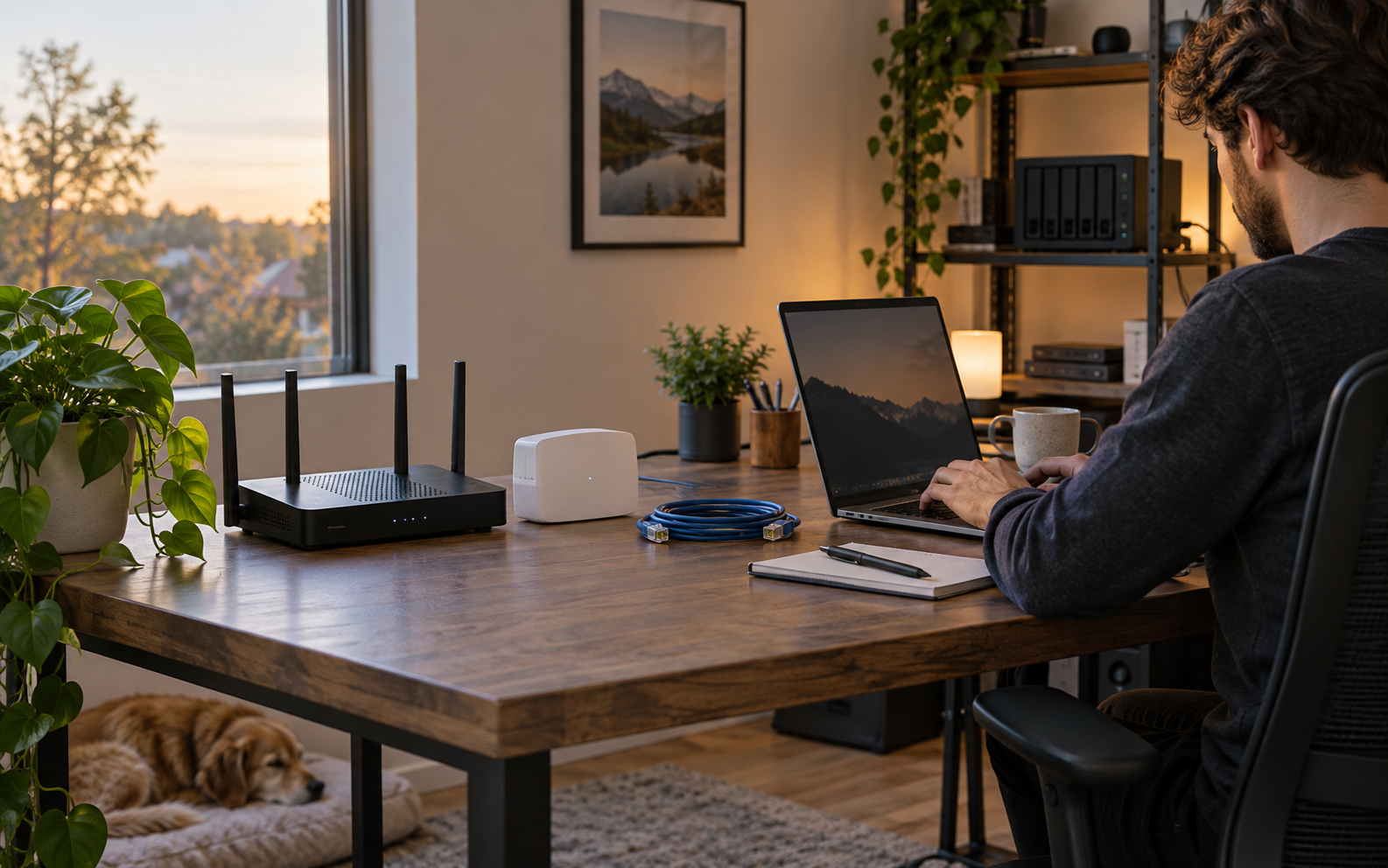
A practical home network where stable connections and safe defaults support remote Mysql Local Development Setup.
How should a remote developer configure a home network to handle intensive workloads without constant latency spikes or dropouts? When you rely on stable SSH connections, heavy container builds, and fast file transfers to local network storage, standard consumer network advice is rarely sufficient. A default router placed in a random corner of the house often results in packet loss, dead zones, and security vulnerabilities that disrupt day-to-day productivity. Solving this problem requires moving away from generic hardware shopping lists and focusing instead on network topology, role separation, and proper backhaul.
At its core, a reliable remote development network separates the modem, router, access point, and client adapter into distinct functional roles. Treating these components as interchangeable devices leads to poor placement decisions. The modem terminates your internet service provider handoff. The router handles routing, firewall rules, and local IP assignment. The access point broadcasts wireless signals. The client adapter connects your development machine to the airwaves. When you understand these boundaries, you can place each piece of hardware where it performs best rather than forcing a single consumer combination unit to handle every task in a suboptimal location.
Designing Your Network Topology
The foundation of any resilient home development setup is a wired connection for your primary workstation. Wireless protocols are convenient, but they are vulnerable to interference from household appliances, physical walls, and neighboring networks. If your build machine, server, or primary development desktop sits near your central networking gear, connect it directly via an ethernet cable. Reserve wireless connectivity for mobile devices, laptops moved around the house, and tablets.
When wireless coverage is necessary for a laptop used in a home office, evaluate your extension strategy carefully. Simple wireless repeaters receive an existing signal and retransmit it, which often cuts available bandwidth in half because the hardware must share its radio time between listening and talking. A better alternative for remote work is a dedicated wireless access point connected back to the main router via a wired ethernet cable, often called a wired backhaul. If running ethernet through walls is impossible, consider a dedicated mesh system that uses a separate tri-band radio frequency or wired link for inter-node communication.
Evaluating Client Adapters and Interference
For laptops or desktop machines that must rely on wireless connections, the choice of client adapter matters significantly. Built-in Wi-Fi cards in older laptops may lack support for modern wireless standards, resulting in congested channel usage and lower throughput. If you need to upgrade an older machine, external USB or PCIe Wi-Fi adapters can provide modern protocol support. However, always ensure the driver stack is stable on your operating system, especially if you run specialized kernels or containerized development environments.
Interference is the primary enemy of reliable wireless throughput. Operating on the 2.4 GHz band offers better physical range through walls, but it suffers from severe congestion caused by Bluetooth devices, microwave ovens, and neighboring home routers. The 5 GHz and newer 6 GHz bands provide higher channel widths and cleaner spectrum, but their signals degrade more rapidly over distance and through solid obstacles. Position your wireless access points with clear line-of-sight to your workspace whenever possible to maintain modulation rates that support heavy data flows.
Establishing a Hardened Security Baseline
Network reliability means little if your development environment is exposed to unauthorized access from the internet or compromised local devices. According to guidance from the Cybersecurity and Infrastructure Security Agency regarding home router security, you must establish a baseline security posture before connecting sensitive development machines to the network. Begin by updating your router firmware immediately to patch known vulnerabilities. Many consumer devices ship with outdated firmware that exposes management interfaces directly to the local network or the wider internet.
Change all default administrative passwords immediately and configure a strong, unique passphrase for your wireless network using WPA2 or WPA3 encryption where supported. Disable remote administration features on your router so that configuration changes can only be made from a trusted wired client inside your home. Furthermore, isolate any Internet of Things devices, smart home appliances, and guest devices onto a separate virtual local area network or guest SSID. This isolation ensures that a compromised smart bulb cannot scan your local development servers or source code repositories.
Troubleshooting Sequence and Diagnostics
When network performance degrades during a critical deployment or build process, a structured troubleshooting approach helps isolate the failure point quickly. Avoid guessing or immediately restarting random pieces of hardware. Follow a logical sequence from the physical layer outward to the application layer.
ping -c 4 192.168.1.1

# Measure latency and packet loss to an external DNS resolver
ping -c 10 1.1.1.1

# Trace network hops to identify where latency spikes occur
traceroute api.github.com

# Inspect active wireless link metrics on Linux
iwconfig wlan0
Start by pinging your local gateway to determine if your immediate local link is functioning. Next, test connectivity to an external IP address to separate local network issues from internet service provider outages. If packet loss occurs only on wireless devices, move closer to the access point to test if signal attenuation is the culprit. Inspect your system logs or network interface metrics to verify that your adapter is not constantly dropping association and reconnecting due to weak signal strength or driver instability.
The Check That Protects Home WiFi for Remote Development
A resilient home development network relies on thoughtful topology rather than expensive hardware shopping lists. Prioritize wired connections for stationary workstations, use wired backhauls for remote access points instead of basic repeaters, and enforce a strict security baseline including current firmware and An Isolated Linux Lab In Virtualbox guest networks. By treating your home network as an extension of your infrastructure, you ensure stable latencies and protect your development environment from avoidable disruptions.
Continue Exploring
You Might Also Like

Validate Content Briefs Before AI Article Generation
Learn how to validate AI content briefs before triggering model calls by implementing deterministic preflight checks for intent, queries, and word ranges.

Copilot CLI Model Settings
Understand how Copilot CLI model settings work and how to configure them.

Pnpm Shared Store and Isolated Worktrees
Pnpm shares package contents between separate installs through a global content-addressable store, but each project maintains its own dependency graph and node_modules structure.